Description #
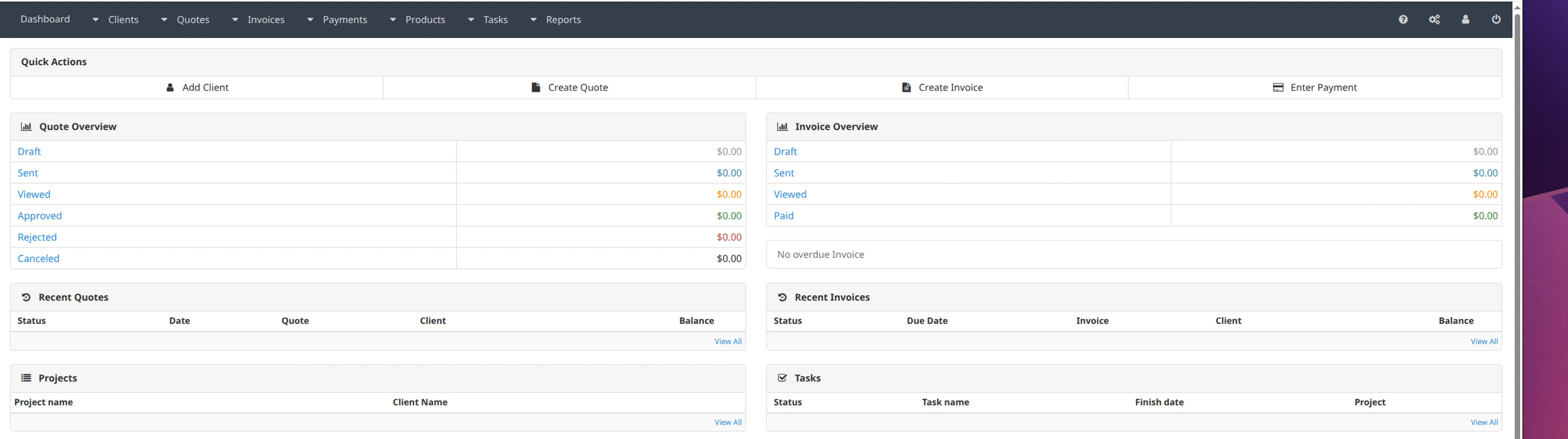
InvoicePlane is one of the leading applications for managing quotes, invoices, clients and payments, and it stands out for how easy it is to use and to configure.
This AMI ships it installed and configured on Ubuntu 24.04 LTS with nginx, PHP 8.1 and MariaDB 11.4: launch the instance and open it in your browser.
Features #
Some of the features InvoicePlane offers:
- Client management.
- Quote management.
- Regular and recurring invoice management.
- Product management.
- Payment management.
- Task and project management.
- Reports on invoice ageing, payment history, sales by client or date, and invoices by client.
What our AMI adds
- AMI based on Ubuntu 24.04 Noble.
- InvoicePlane installed and configured (latest stable release).
- Tuned with: nginx, PHP 8.1 and MariaDB 11.4.
Installation #
Installation follows the normal process of creating an EC2 instance. The recommended instance size is t3.medium.
The security group usually includes the following rules:
| Type | Protocol | Port range | Source |
|---|---|---|---|
| (*) SSH | TCP | 22 | 0.0.0.0/0 |
| (*) HTTP | HTTP | 80 | 0.0.0.0/0 |
| (*) HTTPS | HTTPS | 443 | 0.0.0.0/0 |
The rules marked with (*) are essential, both to reach the web interface and for normal server operation. Although the example uses 0.0.0.0/0, we recommend restricting access to your own networks or bastion hosts.
Once the instance is running, you can log in with:
- SSH: using the
.pemkey you selected when launching the instance, with theubuntuuser. - HTTP: at
https://ip.of.invoiceplane.instance/, with user[email protected]and, as the password, the ID of the instance you have just created.
Configuration #
SSL configuration with Let's Encrypt
To set up a valid certificate you first need to point the name you want to use at the server’s IP with an A record in your DNS. This step is required because Let’s Encrypt verifies that the domain resolves correctly.
The rest of the process is just running the /opt/tools/sbin/configure-nginx-letsencrypt.sh script with two arguments:
- The full domain name you want to use.
- A valid email address.
So if your domain is my.domain.com and your email address is [email protected], you would run:
/opt/tools/sbin/configure-nginx-letsencrypt.sh my.domain.com [email protected]The script takes care of configuring the server to install the certificate, and once it finishes you can reach the instance at https://your-domain-name.
Remember to replace the example domain name used here with your own.
Support #
Using our InvoicePlane AMI includes support for:
- AMI installation.
- Initial configuration.
- Additional AMI-related configuration (Let’s Encrypt support, for example).
- InvoicePlane configuration aspects that may be related to the AMI.
- Basic general InvoicePlane support.
- AMI updates and migrations.
Changelog #
AMI history. Dates are the publication date of each version on AWS Marketplace.
Version 1.0
Our first InvoicePlane AMI, with InvoicePlane installed and configured.
Need help with this AMI?
You get an answer from the same team that builds the image — real engineers, no bots, no first-line triage.